Audit your Mac's security configuration and fix what you find.
Harden is a native macOS security tool that audits your Mac’s configuration against 93 security best practices — with 47 mapped to DISA STIG controls and 72 mapped to CIS Benchmark rules — and helps you fix what it finds. It sits in the space between “I hope my settings are okay” and “I’ll spend an afternoon in Terminal running commands from a compliance benchmark PDF.”
Requires macOS 14 (Sonoma) or later
Why Harden?
Your Mac has dozens of security settings scattered across System Settings, terminal commands, and kernel parameters. The defaults aren’t always secure, and most people never change them. Harden checks all 93 at once, explains what each one means in plain language, and offers one-click fixes where possible.
Inspired by Lynis and Netflix Stethoscope, but designed as a consumer-friendly native app rather than a command-line tool.
Features
Dashboard
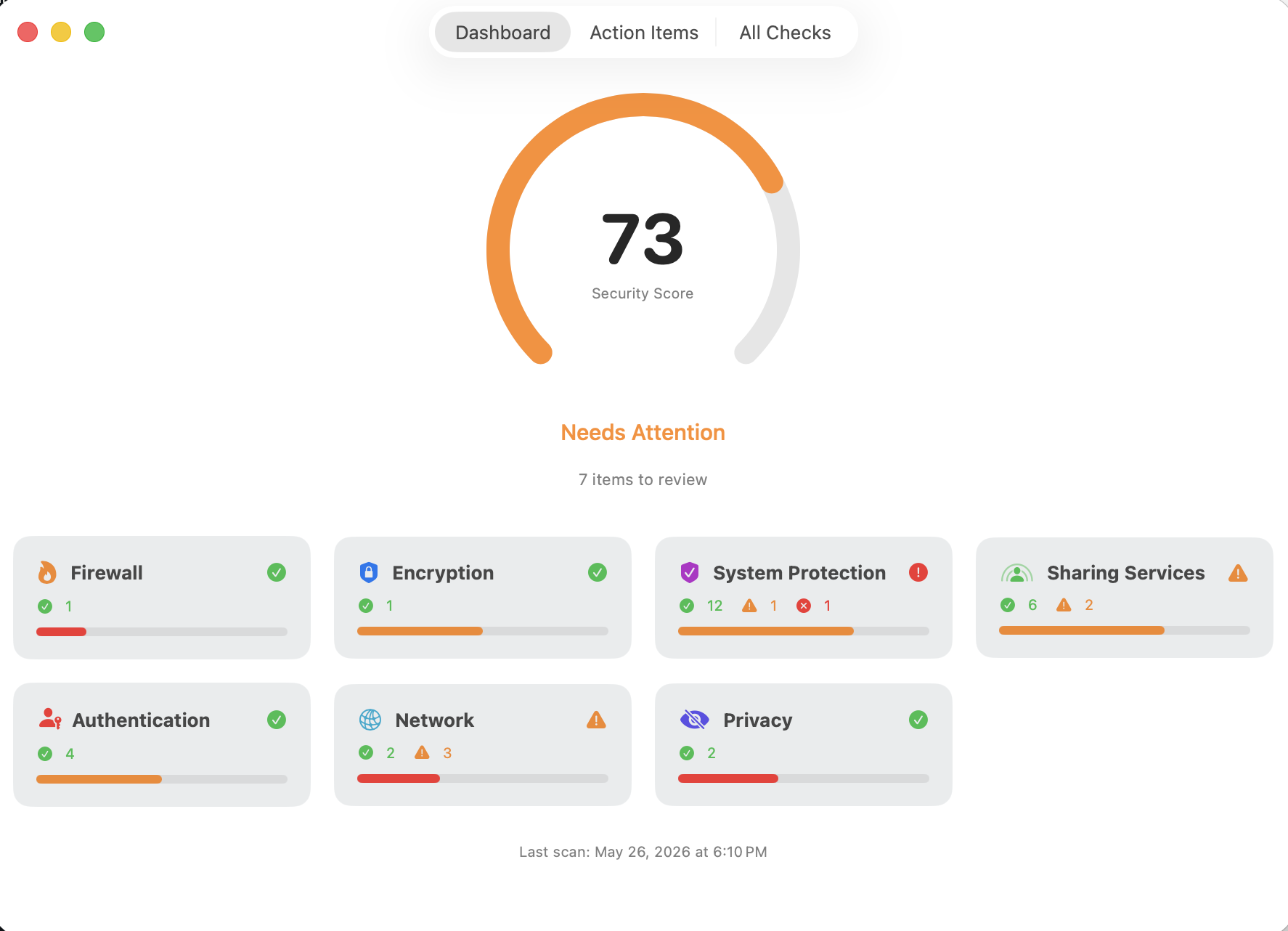
A weighted security score (0-100) with a breakdown across eight categories. See your overall posture at a glance and track how it changes over time.
Action Items
Prioritized list of what to fix, sorted by severity. Each item explains the risk and offers a one-click fix or a link to the right System Settings panel.
Auto-Fix
38 of the 93 checks can be fixed with one click. User-level settings apply instantly; system-level changes use the standard macOS admin password dialog.
Dual Compliance
47 checks mapped to DISA STIG controls and 72 to CIS Benchmark rules for macOS 15 Sequoia. A compliance tab with STIG/CIS toggle shows pass/fail by framework.
Compliance Reports
Export HTML, JSON, or CSV compliance reports with STIG/CIS references and device identity. Share with auditors or ingest into your SIEM.
Agent Mode
Run Harden --agent for headless scanning. Schedule automatic background scans with one-click LaunchAgent setup. Get macOS notifications when checks regress.
Check Reference
A comprehensive guide documenting all 93 checks — what each one inspects, why it matters, how to fix it, and the terminal command behind it.
Auto-Update
Built-in update checking via Sparkle. Get notified of new versions automatically, with cryptographically verified downloads.
Dashboard
Your security score at a glance — a weighted 0-100 gauge with per-category cards showing pass, warning, and fail counts. The dashboard updates after every scan so you can track your progress.
Eight Categories, 93 Checks
Harden organizes its checks into eight categories covering the full surface area of your Mac’s security configuration:
- Firewall (5 checks) — application firewall, stealth mode, logging, outbound firewall detection, pf packet filter
- Encryption (2 checks) — FileVault disk encryption, Time Machine backup encryption
- System Protection (25 checks) — SIP, Gatekeeper, XProtect freshness, Secure Boot, auto-updates, macOS version, Find My Mac, system extensions, uptime, NTP, malware scanner, Rapid Security Response, audit daemon/flags/permissions, AMFI, world-writable folders, sudo timeout/logging, root account
- Sharing (14 checks) — SSH, screen sharing, file sharing, remote management, printer sharing, Bluetooth sharing, AirDrop, legacy insecure services, SSH config hardening, remote Apple events, internet sharing, media sharing, AirPlay receiver, content caching
- Authentication (16 checks) — auto-login, password after sleep, guest account, lock delay, screensaver timeout, login window style, home directory permissions, password policy, FileVault auto-login, hot corners, console login, Apple Watch unlock, guest SMB access, password hints, guest home folder, system preferences password
- Network (9 checks) — DNS configuration, Wi-Fi security, saved open networks, wake-on-LAN, sysctl hardening, promiscuous interface detection, HTTP server, NFS server, Power Nap
- Privacy (14 checks) — analytics sharing, Safari suggestions, Siri, Lockdown Mode, TCC permissions audit, Apple Intelligence controls (external AI, Writing Tools, Mail Summary, Notes Transcription), dictation, Siri/dictation data sharing, personalized advertising, search data sharing
- Applications (8 checks) — Safari auto-open downloads, fraudulent site warnings, cross-site tracking, ad privacy, full URL display, status bar, Terminal secure keyboard entry, filename extensions
Scoring
Each check carries a weight based on severity — Critical (25 pts), High (15 pts), Medium (10 pts), Low (5 pts), Info (0 pts). A passing check earns full weight, a warning earns half, and a failure earns zero. Your score reflects how much of your security surface is covered.
Snooze and History
Not every finding needs immediate action. Snooze items for a day, a week, a month, or indefinitely. Scan history is persisted between sessions so you can see which checks improved or regressed over time.
Dual Compliance: STIG + CIS
Harden maps checks against two major security frameworks:
- DISA STIG — 47 rules from the Apple macOS 15 Sequoia STIG (V1R7), grouped by CAT I/II severity
- CIS Benchmark — 72 rules from the CIS Apple macOS 15.0 Sequoia Benchmark v1.1.0, organized by CIS section and Level 1/2
The Compliance tab lets you toggle between frameworks. Each view shows your system’s status from that framework’s perspective — for every rule, are you compliant? Pass/fail counts and compliance percentages give you a quick read. Check detail views show color-coded STIG and CIS badges, all searchable.
Compliance Reports
Export compliance reports in three formats:
- HTML — A styled, self-contained report with STIG and CIS compliance tables, all checks grouped by category, device identity, and recommendations. Dark mode aware. Share with auditors or attach to compliance tickets.
- JSON — Machine-readable export with full check details, framework references, and device identity (Hardware UUID for fleet deduplication).
- CSV — Flat export for spreadsheets and databases, with framework references and device identifiers per row.
Agent Mode and Scheduled Scanning
Run Harden --agent for headless scanning — no UI, no Dock icon. Output JSON to stdout or a file, get a macOS notification if checks regress since the last scan. The Integration tab offers one-click LaunchAgent setup for automatic background scanning on a schedule (1, 4, 8, or 24 hours).
Auto-Update
Harden uses the Sparkle framework for automatic update checking. Updates are cryptographically verified with EdDSA signatures and Apple code signing before installation.
Technical Details
- Native macOS app built with Swift and SwiftUI
- Sparkle auto-update — the only third-party dependency, for secure update delivery
- No kernel extensions — orchestrates existing macOS tools (
defaults,csrutil,fdesetup,spctl,socketfilterfw, and others) - Parallel scanning — all eight category checkers run concurrently with timeout protection to prevent hangs
- Dual compliance — 47 DISA STIG rules + 72 CIS Benchmark rules mapped across 93 checks
- Agent mode —
Harden --agentfor headless scanning, LaunchAgent scheduling, macOS notifications on regression - Privacy-respecting — all data stays on your machine; no telemetry, no analytics (the only outbound request is the update check to subversivesoftware.org)